Configuration
Run dttr-config.exe next to dttr.exe to change settings without hand-editing dttr.json.
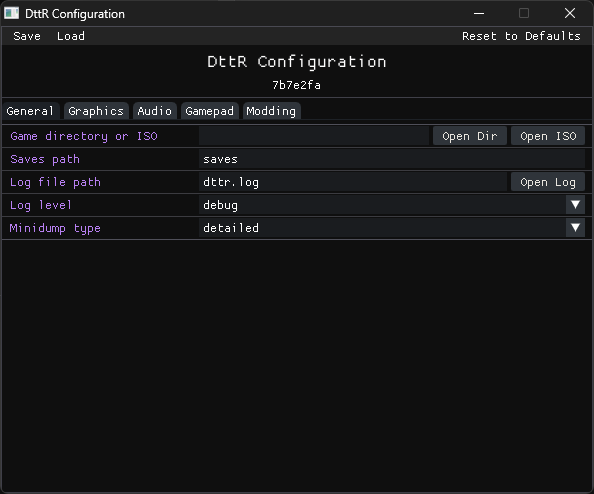
Choose Save before closing the tool. DttR reads the saved dttr.json the next time it starts, so restart the game after changing settings.
Switching game files
Use Game Directory or ISO to switch discs, choose another installed copy, fix a path after moving files, or open the first-time setup prompt again.
- For an installed copy, choose the folder that contains
pcdogs.exe. - For an ISO, choose the original disc image.
- For a disc, insert or mount it before opening DttR.
Moving your saves
By default, DttR reads and writes saves from a DttR-owned directory (saves next to dttr.exe). Each game executable variant gets its own subdirectory.
If you need the game to use its original save paths, set saves_path to an empty string in dttr.json.
Skipping intro movies
Turn on Skip Intro Movies to skip the opening videos. This is also worth trying if the game crashes before reaching the main menu.
Adjusting graphics
Start with the defaults unless you are fixing a specific problem or want a different look.
If the game has startup or rendering problems, try changing Graphics API:
autolets DttR choose.vulkan,direct3d12, oropenglforce one backend.
Use Scaling Fit to control the window shape:
letterboxkeeps the correct aspect ratio.stretchfills the window but may distort the image.integeruses whole-number scaling for sharper, more consistent pixels.
Use Scaling Method only when you need to tune where scaling happens:
logicalscales the game's internal image.presentscales the final image shown on your display.
If polygons shimmer or seams look wrong with logical scaling, try changing Vertex Precision. Use native for the original positioning style, or subpixel for smoother movement with possible minor artifacts.
Other useful graphics settings:
- Turn
Fullscreenon to start fullscreen. You can also toggle fullscreen in game with F11. - Turn
Sprite Smoothoff for sharper sprite pixels. - Set
MSAA Samplesto1to disable MSAA.
Configuring a controller
Turn on Enable Gamepad, save your changes, then start DttR with the controller connected.
If DttR uses the wrong controller, change Gamepad Index; keep it at 0 when only one controller is connected.
If movement or camera control feels off, adjust the axis bindings or the matching deadzone fields: raise the deadzone if a centered stick drifts, and lower it if movement feels unresponsive near the center.
To change a button, click its Bind button, then press the controller button or trigger you want to use.
Use Reset to restore the default mapping, or Clear to leave an action unbound.
Adjusting audio
Use MSS Sample Gain to make game audio louder or quieter.
Leave MSS Sample Preemphasis at the default unless you have a specific need to adjust it.
Collecting logs and crash reports
Use Log File Path to configure where DttR should write dttr.log. Relative paths are based on the DttR directory.
If you need more detail for troubleshooting, set Log Level to debug or trace.
Use Minidump Type to control how much information crash dumps include. Posting crash dumps publicly can expose sensitive information; share them only when requested.
Configuring modding options
The Modding tab is experimental and only exists in the Modding build.
- Use
Hot Reloadto enable reloading updated mod DLLs automatically without needing to restart the game. - To disable specific installed mods, uncheck their DLLs in the mod list.
Editing the config file directly
For direct JSON editing, alternate config files, and the full key reference, see Configuration (Technical).